

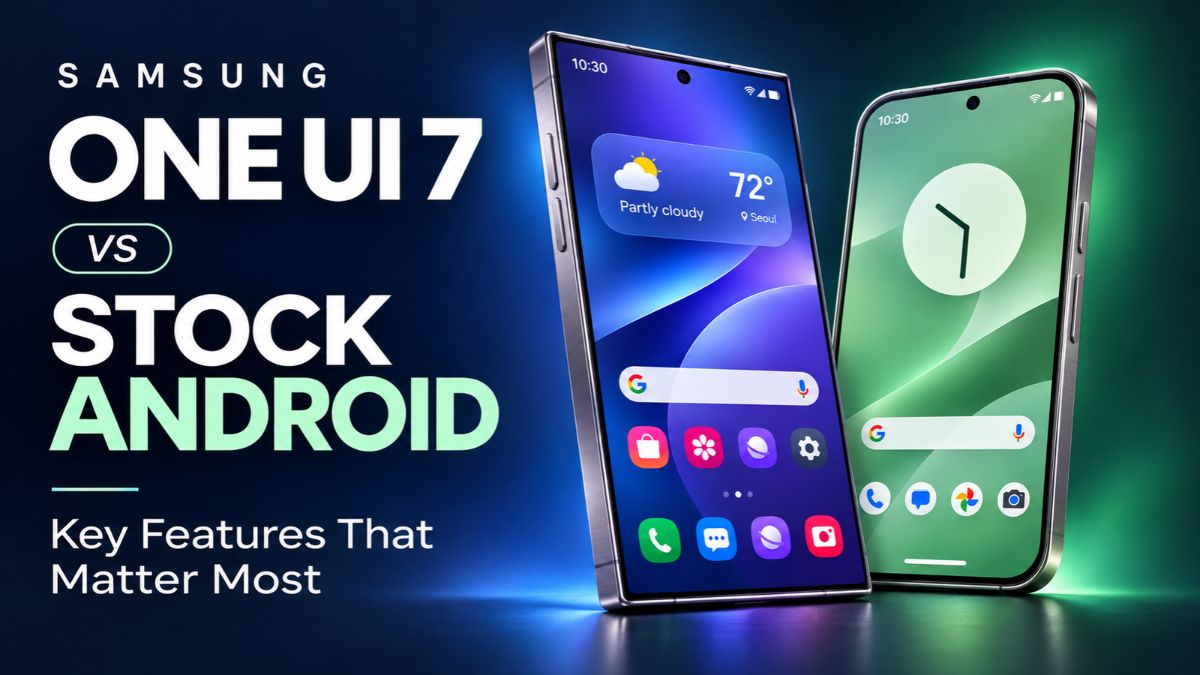
Two phones can run Android and still feel very different. The way you open settings, check messages, change the home screen, and use two apps can shape your whole day. Samsung One UI 7 vs Stock Android is a useful comparison if you want to understand those differences before choosing a phone. Samsung adds its own design and tools, while a stock-style experience usually keeps closer to Android’s basic layout. The best fit depends on which features you use and how much you enjoy changing settings.
What One UI 7 and Stock Android Mean
One UI 7 is Samsung’s interface built on Android 15. It adds Samsung apps, menus, and features to the Android system. The closest technical reference for a plain Android system is the Android Open Source Project, or AOSP. This is the public software base that phone makers can build on. It does not include every app and online service needed for a complete retail phone experience. Samsung One UI 7 vs Stock Android therefore compares a finished Samsung interface with a term that needs some care.
In everyday use, people often say “stock Android” when they mean a simpler interface with fewer changes from the phone maker. Pixel phones are a common example, although they include Google’s own features and are not plain AOSP. This guide uses “stock-style Android” for that everyday meaning and Android 15 as the comparison point. One UI 7 is also an older release now, so check your phone’s installed version before following menu instructions.
Home Screen Design and Everyday Navigation
One UI 7 brings changes to Samsung’s home screen, widgets, and lock screen. Its design gives Samsung’s menus and controls a clear shared style. A simpler Android interface may feel more familiar if you already use another phone with few manufacturer changes. However, a plain-looking screen still offers useful tools. Your choice should depend on how easily you can find apps, read text, and reach common controls.
When judging Samsung One UI 7 vs Stock Android, try normal tasks before focusing on appearance. Open the camera, find a downloaded file, change the text size, and return to your last app. Notice which actions feel clear without help. Someone who enjoys arranging widgets may value Samsung’s design choices. Someone who keeps just a few shortcuts on the home screen may prefer a simpler setup.
Quick Settings and Notifications
One UI 7 can separate notifications from Quick settings. In the separate layout, a swipe from the top left shows notifications, while a swipe from the top right opens device controls. You can also switch to the Together layout through the panel settings. This lets you choose a layout that matches your habits rather than learning only one approach.
The familiar Android approach shows notifications and some controls after one downward swipe, with more Quick Settings available after another swipe. A useful Samsung One UI 7 vs Stock Android test is to change brightness and check a message using one hand. Put your most-used controls near the front. The number of taps and the reach needed may matter more than the panel’s colour or shape.
The Now Bar and Lock Screen Access
The Now Bar is a key One UI 7 feature on supported devices. It shows information about ongoing activities and provides quick access to supported controls from the lock screen. Examples include an active timer or media playback. Now Brief is a different feature that provides personal summaries, and its availability also depends on the device. Having One UI 7 does not guarantee every related feature.
The lock screen side of Samsung One UI 7 vs Stock Android comes down to useful access. If you often check a timer while cooking, the Now Bar could save effort. If you rarely use ongoing activity controls, it may add little value for you. Think about what you want to see while the phone is locked, then check the available privacy and display settings.
Personal Settings and Good Lock
Personal settings are a major part of Samsung One UI 7 vs Stock Android. Samsung offers Good Lock as an extra app for deeper changes on supported Galaxy devices. Its tools expand the ways you can adjust the phone’s appearance and behaviour. Support can vary, so check the options available for your exact model before expecting a particular change.
A simpler Android phone can still let you change wallpapers, arrange widgets, and adjust supported colours or icons. The available choices depend on its software. Start with a clear home screen and readable text before exploring extra themes. Change one thing at a time so you can judge whether it helps. A personal setup should make the phone easier to use each day.
Multitasking and Working With Two Apps
Samsung’s Multi window tools support split screen and pop-up views on compatible devices and apps. You can keep two supported apps visible or place an app in a smaller floating window. Android also supports split-screen use, so viewing two apps together is not limited to Samsung. The difference lies in the extra controls, shortcuts, and window options available on each phone.
For students and office users, Samsung One UI 7 vs Stock Android is worth testing with real work. Open a document beside your notes, or compare a message with a calendar entry. Check whether both apps remain easy to read. A feature may sound useful yet feel crowded on a small display. Your screen size and the apps you use are important parts of the result.
AI Features and Their Limits
On supported Galaxy devices, Writing Assist can help with tasks such as changing writing style and checking spelling or grammar. Samsung’s support information makes clear that availability depends on the device and supported languages. Some AI tools also have their own account, connection, or service requirements. Read the details for the specific tool you want instead of assuming every Galaxy phone offers the same package.
For AI, Samsung One UI 7 vs Stock Android requires separating the Android base from added services. A plain AOSP installation does not automatically provide a complete collection of Google or Samsung online tools. A retail phone may add its own assistants and apps. Try an example in the language you use every day, then check the result carefully. A writing tool has value when its suggestions save editing time.
Built-In Apps and Daily Organisation
The apps that arrive with a phone deserve attention because they shape simple tasks. Before choosing, look at the browser, gallery, notes app, keyboard, and file manager on the actual device. Check which apps you can remove or disable and which you want to keep. A tidy home screen does not show everything installed, so also review the full app list and available storage.
Samsung also offers Modes and Routines to automate supported actions. For example, a routine can change certain settings when its chosen conditions are met. This can help if you regularly switch between work, home, and sleep settings. Start with one small routine and watch how it behaves. The available conditions and actions vary with the device and software version.
Speed and Smoothness in Real Use
Performance claims in Samsung One UI 7 vs Stock Android need context. The interface alone cannot tell you how quickly a phone will open apps or handle games. The processor, memory, storage, app versions, and current workload all affect the experience. A simple-looking interface is not enough evidence that a particular device will be faster. Compare the actual models you are considering.
For a practical check, open the same everyday apps on both phones. Scroll through a long page, switch between a browser and a map, and return to an earlier task. Keep the settings and conditions as similar as possible. Watch for delays during the actions you repeat most. A smooth home screen animation is pleasant, but it does not answer every performance question.
Battery Life and Background Activity
Battery life is another area where Samsung One UI 7 vs Stock Android cannot produce one universal winner. Battery capacity, screen brightness, mobile signal, apps, and daily use all matter. A phone that lasts well during light browsing may behave differently during navigation or video recording. Use battery tests for the exact phone model rather than treating the interface name as a battery rating.
On a phone you already own, review which apps use the most battery before changing many settings. Reducing screen brightness or adjusting an unusually active app may help more than changing the home screen. Google also notes that Pixel battery management learns from app use over time. Give a new setup time to settle, then judge it over several normal days.
Camera Controls and Photo Quality
One UI 7 redesigns parts of Samsung’s camera interface. Its layout brings shooting controls together and uses a smaller pop-up for choosing additional modes. These changes affect how you reach camera tools and how much of the preview stays visible. The exact camera functions still depend on the Galaxy model and its hardware.
A simpler Android interface does not guarantee the same camera app across different phones. Compare photographs from the actual devices, especially indoors or when people are moving. Also check how quickly you can change zoom or start a video. Easy controls and good image quality are separate questions. A camera should produce results you like while letting you capture the moment without confusion.
Privacy and Security Controls
Android’s privacy dashboard helps you review which apps have used permissions such as the camera and microphone. You can then adjust access where needed. Samsung adds its own security features, including the Knox Matrix dashboard in One UI 7 for supported connected devices. It provides a way to review their security status. These tools serve different purposes, so compare the functions rather than counting menu entries.
During setup, review app permissions and decide how much notification content should appear on the lock screen. Check account recovery details while you can still access your accounts easily. Choose security options you understand and will keep using. A long feature list is less helpful if important settings remain unclear or the phone no longer receives security patches.
Software Updates and Long-Term Support
Update support in Samsung One UI 7 vs Stock Android depends on the phone maker and model. Google promises seven years of updates for Pixel 8 and later phones, counted from their first availability in the US Google Store. Samsung announced seven generations of operating system upgrades and seven years of security updates for the Galaxy S24 series. These promises apply to the named devices, not every Android phone.
Check how much support remains when buying an older handset. Seven years from launch does not mean seven fresh years from your purchase date. Also separate major Android upgrades from security patches, since they do different jobs. Read the support policy for the exact model and region. A clear update commitment can matter more over several years than a feature you use only occasionally.
Choosing the Better Fit for Your Routine
One UI 7 is worth considering if its supported tools match your habits. Think about whether you would use floating windows, detailed personal settings, routines, or the Now Bar regularly. Choose two or three features that solve a real problem for you. Then confirm that they work on the Galaxy model within your budget. This keeps the decision focused on daily value.
A stock-style phone may suit you if you prefer its layout and find its included tools sufficient. Try both approaches with familiar tasks, including typing a message and finding a setting. Include camera quality, battery results, screen comfort, and remaining update support in your decision. The most useful phone is the one that handles your routine comfortably at a price you can afford.
Conclusion
Samsung One UI 7 vs Stock Android is a choice about how you want to use your phone. Samsung’s extra controls can help with personal settings, multitasking, and daily shortcuts, while a simpler Android setup may feel easier to manage. Compare exact phone models, confirm feature support, and test the tasks you repeat most. Give lasting needs, such as battery life and updates, as much attention as the design.
(FAQ’s)
1. Is One UI 7 based on Android 15?
Yes. One UI 7 uses Android 15 as its base and adds Samsung’s interface and features.
2. Are Pixel phones pure stock Android?
No. Pixel phones include Google’s own apps, services, and exclusive features.
3. Can One UI 7 combine notifications and Quick settings?
Yes. Open the panel settings and choose the Together layout.
4. Does every One UI 7 phone have all Galaxy AI features?
No. Availability depends on the device, language, and requirements of each feature.
5. Is stock-style Android always faster?
No. Speed depends on the actual phone’s hardware, software, apps, and workload.
You may also read: HRMtaila Review What to Know About the AI and HR Claims Online
Visit for more additional information: Zellow Magazine